

How to Change Your cPanel Password
This guide walks you through changing the password for your cPanel account using your HostGrap dashboard.
Steps
- Log in to your HostGrap account Go to dashboard.hostgrap.com and sign in with your HostGrap credentials.
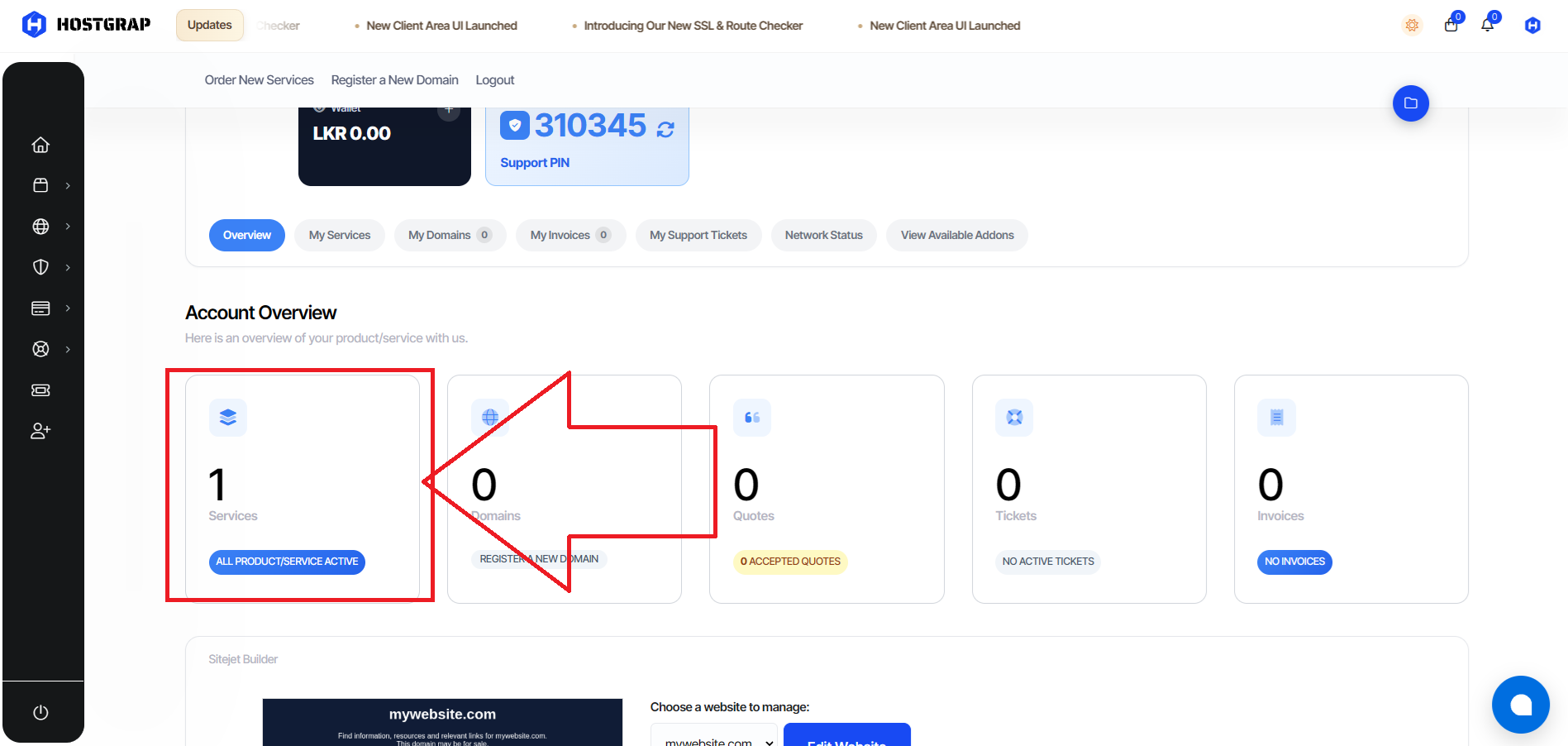
- Open the Services section From the main dashboard, click on the Services card to view all your active hosting services.
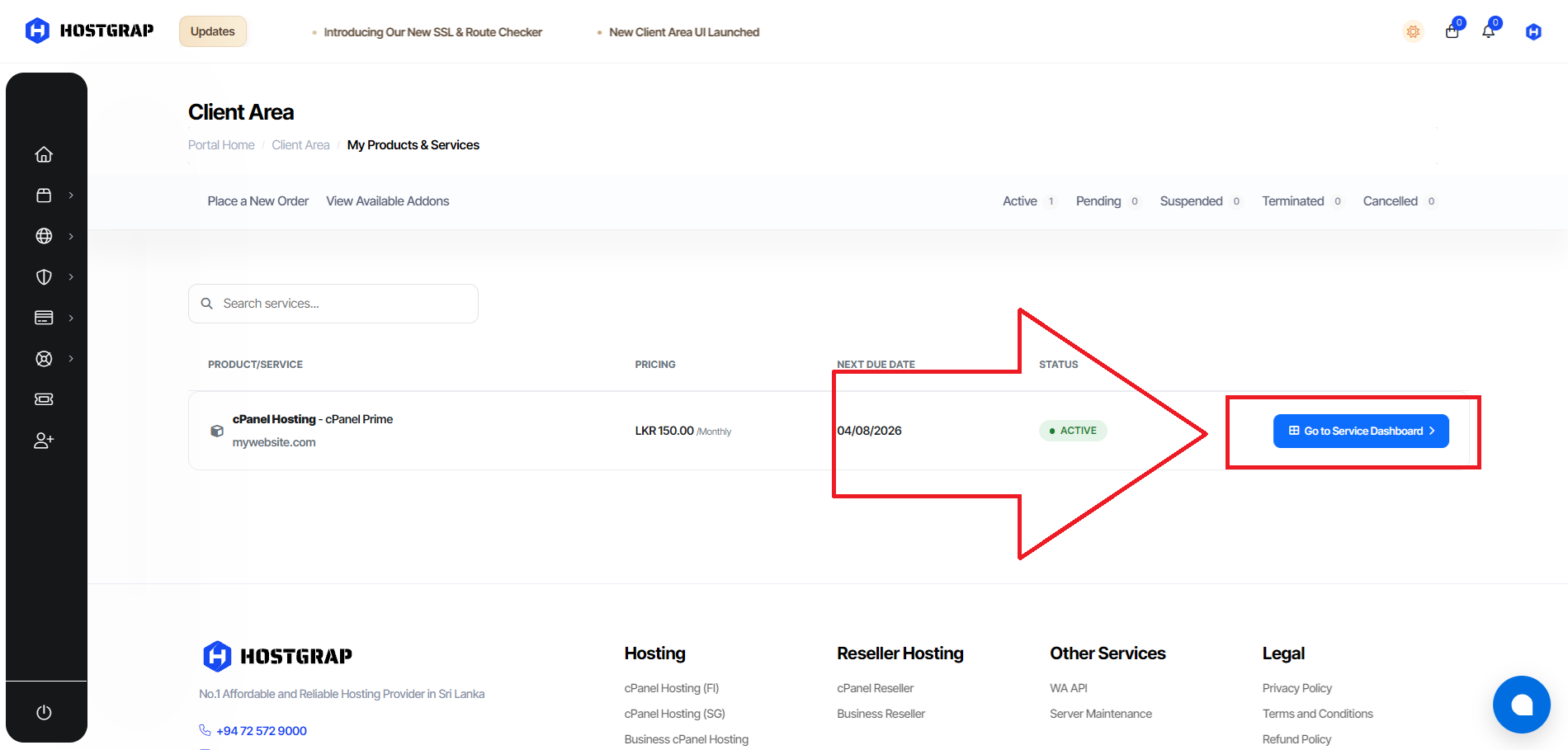
- Select the relevant service Click on the specific hosting service (the one whose cPanel password you want to change) to open its service dashboard
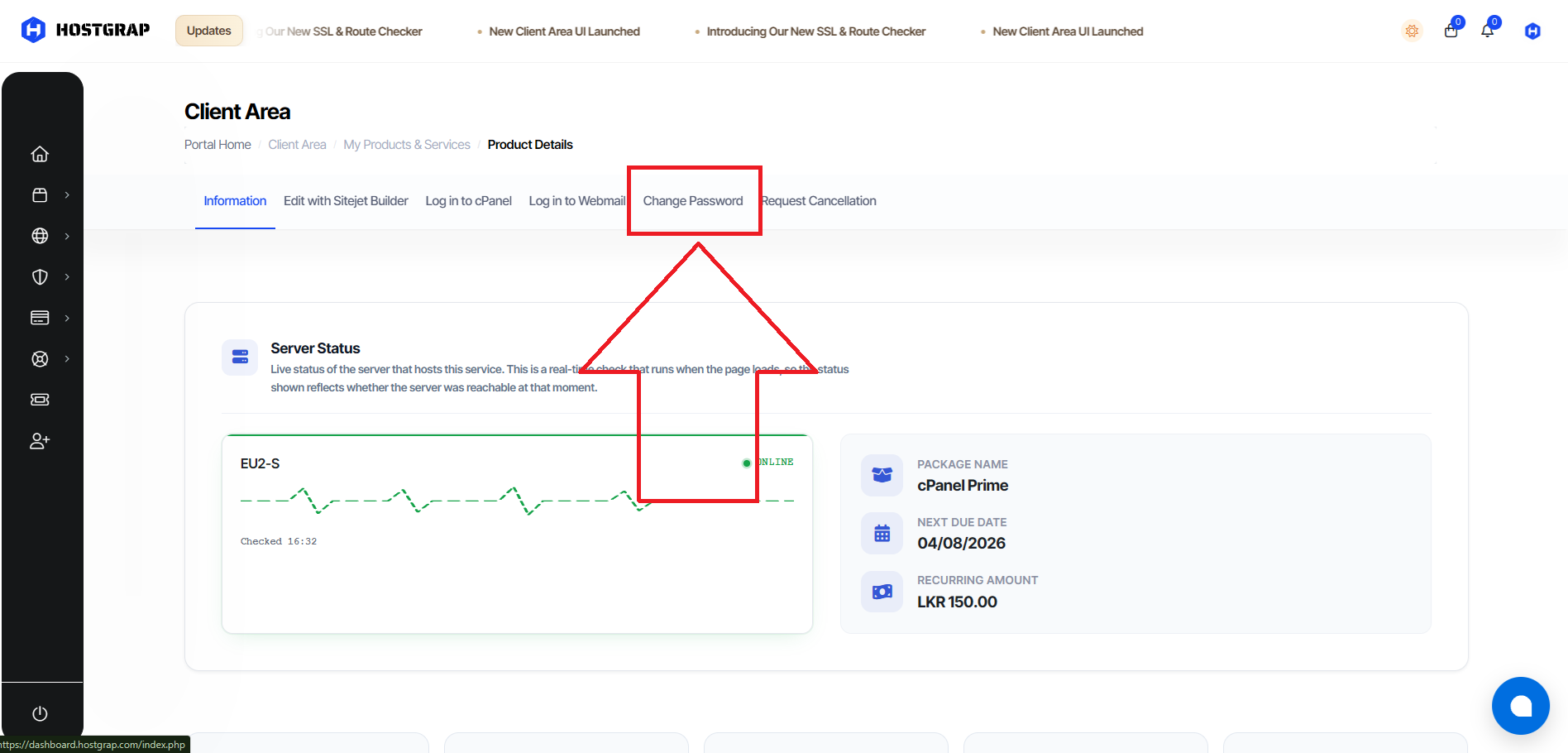
- Go to the Change Password tab Within the service dashboard, click on the Change Password tab.
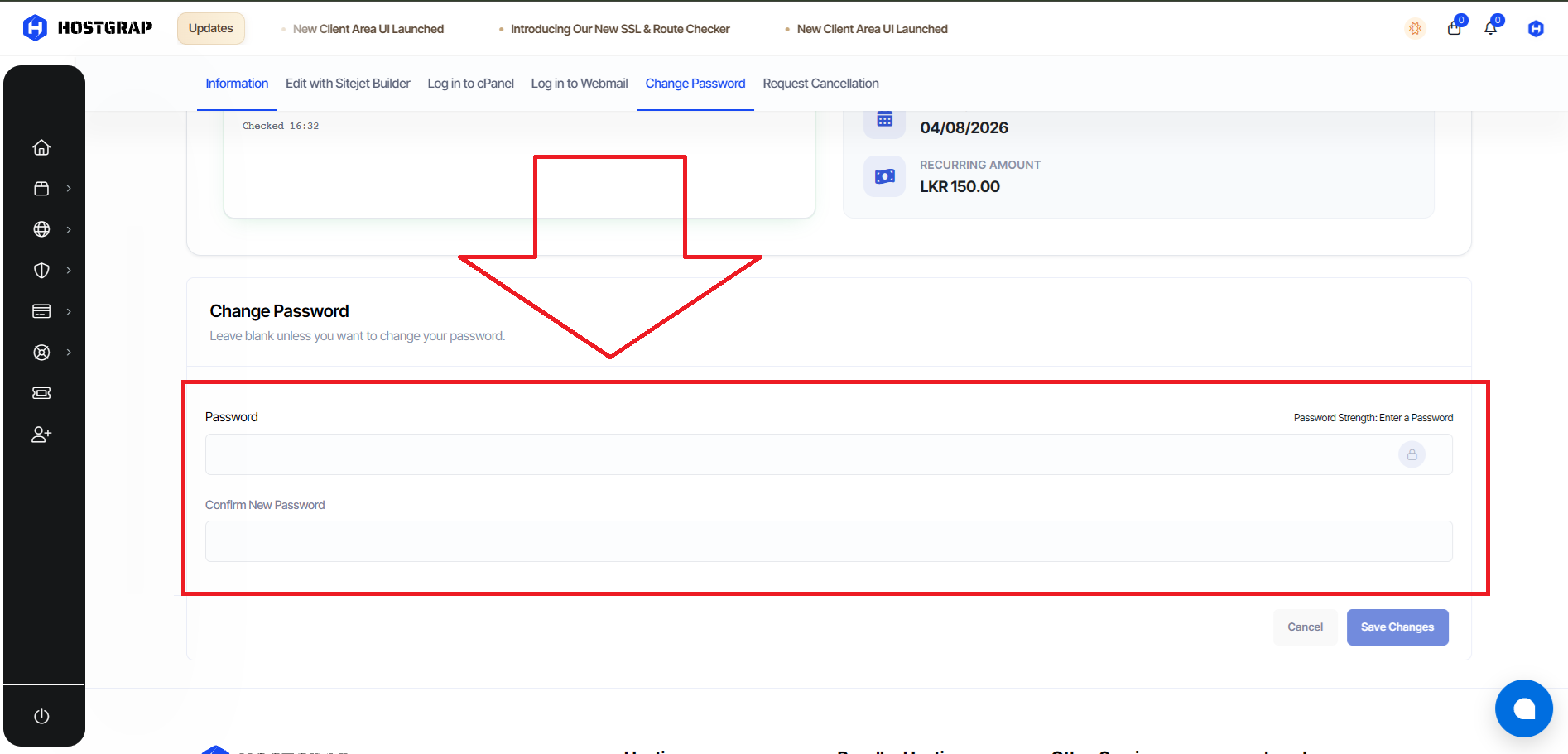
- Set and save your new password Enter a new password in the field provided, then click Save to apply the change.
Troubleshooting: Password Change Failing?
If you get an error while trying to save your new password, it is usually caused by special symbols in the password that aren't accepted by the system.
Fix:
- Remove all symbols (e.g.
! @ # $ % ^ & *) from your password. - Use only a combination of uppercase letters, lowercase letters, and numbers.
- Try submitting again.
Tip: For a strong yet compatible password, use a longer combination of letters and numbers instead of relying on symbols, for example:
Sunflower482Kandy91